We’ve all been there…you could’ve sworn that you just took your phone off the charger moments ago when all of a sudden, you get an alert that you have 15% remaining with no charger in reach. Breathe! Now let’s find out what caused this travesty.
Assuming that your device is functioning properly, you can easily find out what caused your battery to be at its current level in just a few short steps.
Battery Settings
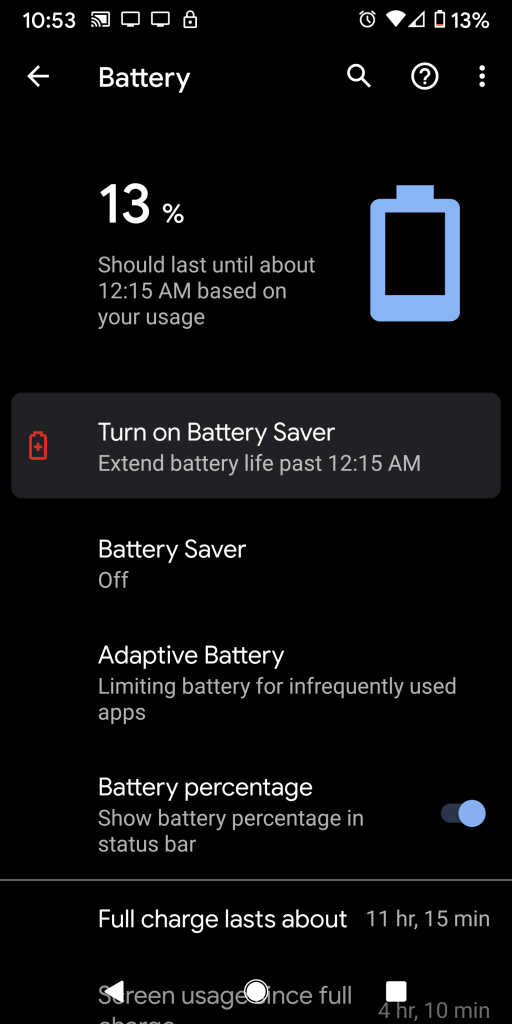
On Google Pixel – Settings, then Battery
On Samsung – Settings > Device Maintenance > Battery
On iPhone/iOS – Settings, then Battery
You can also ask your respective voice assistant to take you there by speaking a command like “Battery Settings”.
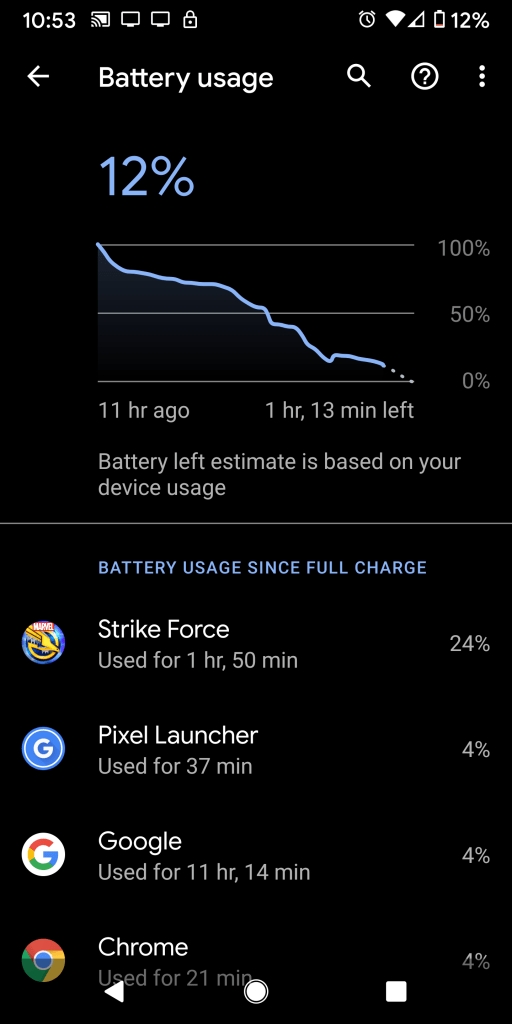
The battery settings section has evolved over time and includes many details regarding its operation as well as what specifically caused the drain. On Pixel for example, by clicking the 3 dots menu button in the top-right of the Battery Settings screen, you can see which apps have caused what percentage of drain(see below). Furthermore, with an additional tap of the respective app’s icon on this screen, you can see the app’s foreground and background battery consumption.
What do I do with the culprits?
Well, sometimes you just have to face the facts. If you’ve been gaming or watching a series on Netflix for a few hours while waiting on your layover, expect your device to drain quickly. Games and streaming apps will sometimes be the main contributors to the drain of your battery. This is because the games can utilize heavy graphics/processing and streaming apps use data… and both use that nice screen of yours. Heavy processing, data and screen use tend to drain the battery the most.
If you find an app that you don’t regularly use however, it may be time to take some action. If it’s an old game that you no longer play for example, you may have not known that it could still run other processes in the background…like generating all of those notifications and ads that you hate. You may want to uninstall apps on this list that you don’t use.
Need to squeeze out a few more precious moments?
Low Power Mode –
Most new phones include a mode that attempts to reduce the use of the battery while maintaining a high level of functionality. On Pixel devices for example it’s called Battery Saver. On iPhones, Low Power Mode.
Some models also include the option to activate the mode directly from the notification panel. Here it’ll usually look like a battery icon and may have a description to indicate its purpose. Activating this mode can come in handy any time you’re running low and don’t anticipate getting a charge in the near future. You may also find that your device will activate this on its own by default when you get low.
Brightness Settings –
Reducing your brightness as low as you can tolerate can save you a good bit of battery life, especially if you plan to have your screen on for an extended period of time. One can adjust this setting in the notification shade or display settings. Voice commands via your assistant like “Screen Brightness 50%” may also work.
Airplane Mode –
The radios in your device require power to function. Disabling them one at a time like turning off Bluetooth, Wi-Fi or GPS will help reserve the power normally used by them. Of course you can do this all at once by turning on Airplane Mode. This can normally be found in the notification/command section of your device symbolized by an airplane icon or within settings. A simple voice command from your respective voice assistant service after the prompt like, “Turn on Airplane Mode”, may work as well.
Portable Power Banks –
The rise in popularity of portable power banks have brought new form factors, features, lower cost and convenient sizes. If always ensuring you’re charged and ready is important to you then it may be worth your while to buy one that fits in your pocket or bag to restore the precious glow of your phone.
Beware of the Power Down –
If you don’t plan on using your phone for a significant amount of time before charging, not much beats a full power down. However, if you still plan on checking your phone every 5 minutes then this may actually not be the best recommendation. This is because your device goes through a lot when it boots to get your device ready for use, some of which may include a nice bright splash screen. This can actually cause more strain on your battery than leaving it on using the other tips when done repeatedly.
These are just a few causes and solutions for your battery drain. Have you found any surprising causes for your battery to drain? What tips do you have to stay charged and efficient? Comment below!
 Tech Dabble