Maybe you’re curious. Maybe you’re budgeting. Or, maybe you just got an alert that said your teenager just used 90% of your monthly data on the first day of your billing cycle! What on earth is using your data?!?!? Great question and it may not always be what you think.
Take a breath…it was probably bound to happen.
It seems the more smartphones advance, the more they’ve come to rely on the abundance of today’s networks. It is data after all that helps apps and services produce robust experiences like pushing real-time content. Be it news, weather, communication or extra levels in a video game, data helps make a lot of current apps tick.
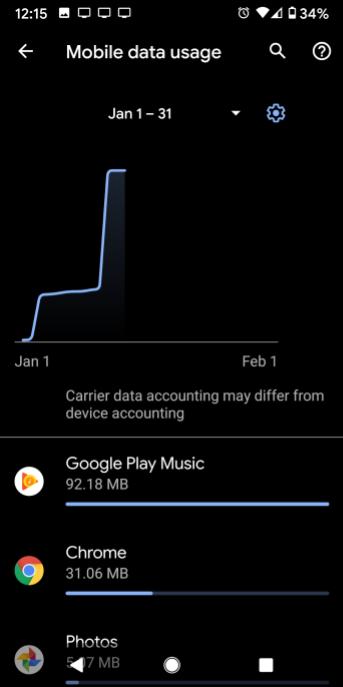
Where Can I Find What’s Using My Mobile Data?
Even if you’re on an unlimited plan, it may be worth it to find out how much data your apps are using and what may be using data when you’re not looking. Check out the below steps for popular devices.
Pixel and some others – Settings > Network and Internet > Mobile Network > App Data Usage
Samsung – Settings > Connections > Data Usage > Mobile Data Usage
iPhone/iOS – Settings > Cellular or Settings > Mobile Data. For iPad, you may see Settings > Cellular Data instead.
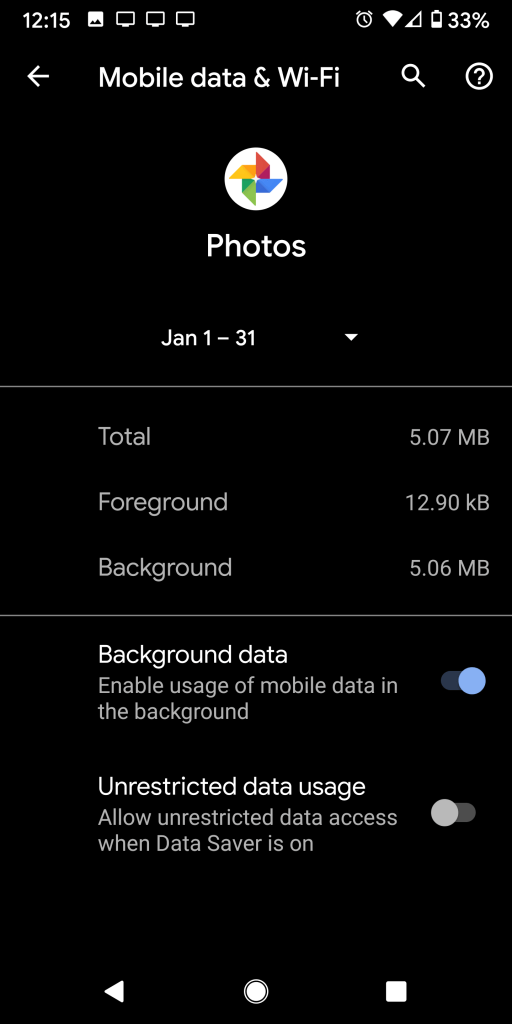
Foreground vs. Background
Some devices will help you distinguish exactly when an app is using data. Foreground and Background information found within the settings above will tell you how much data is being used when you’re actively using the app and how much is being used when you’re not interacting with the app respectively. Bear in mind, background data can be important for apps that need to run important processes like backing up your data, photos, or pinging networks for new alerts and updates.
What Can I Do to Stop This Madness?
Hoooooold your horses just a sec. I know that seeing an impending charge can make you want to shut the whole device down or start limiting services and they may end up being the right thing to do at the moment. Within these data sections of your device you can turn off specific app data access or mobile data entirely. However, this may cause more problems in the long run for the apps you enjoy and/or rely on. Turning off data for important apps like email might mean that you miss the important security advisement your bank is trying to alert you of.
This Simple Smartphone Trick May Help You Capture A Moment Otherwise Lost!
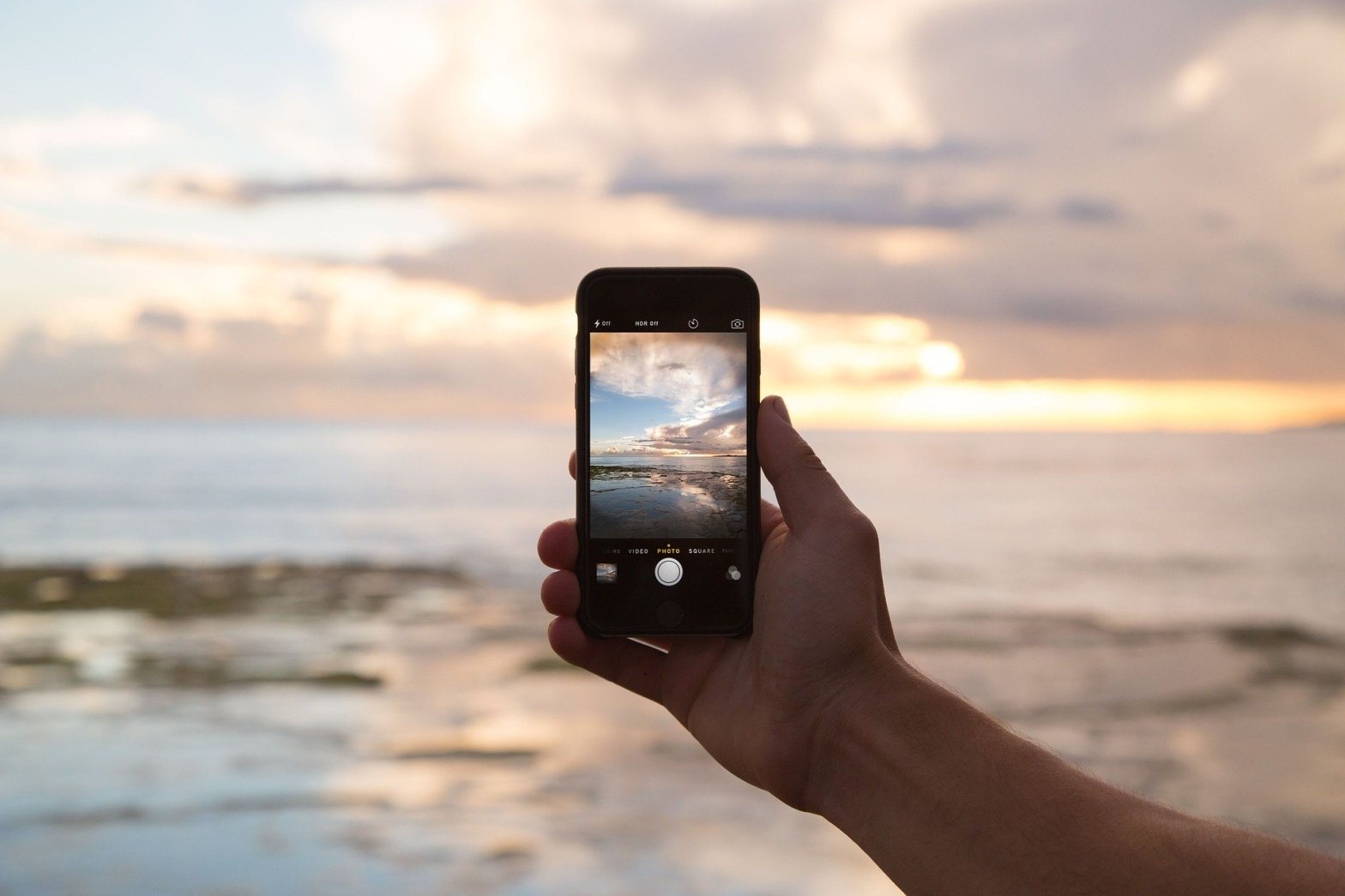
Quick, your toddler is doing the cutest thing right now! Make sure you capture it by knowing the fastest way to access your camera!
You know the saying, “The best camera is the one you have with you”. Well, I’ll take it a step further and say the best camera is the one that’s ready when you are! As a parent of 3 kids, I can’t tell you how many moments I’ve been able to capture by knowing this simple trick that most new smartphones come equipped with. Sure, there are many ways to access your camera like the traditional icon found within your apps, voice commands and even within other apps but this method in my experience is unmatched in its speed and convenience. Not only can this shortcut help ensure precious moments aren’t lost, it’s pretty much the only way I access my camera period.
How Do I Do It?
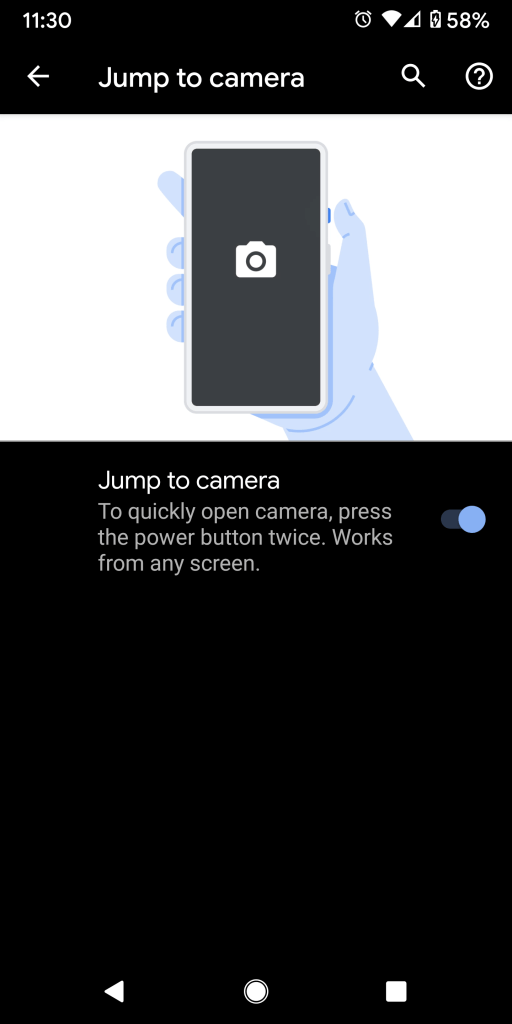
Google Pixel and some other Android Devices – Double tap the power button. In addition on Pixels, you can quickly swap to the front-facing selfie camera with a quick double-twist of the wrist[Think unscrewing a lightbulb].
Samsung – On older models the camera may be accessed by double-tapping the home button. On newer models it can be accessed by double-tapping the power button.
iPhone/iOS – From the lock screen you can swipe left to access the camera or take advantage of 3D Touch, if your device supports it, to press the camera icon. In addition, there’s a camera shortcut within the Control Center. To access it from most situations, swipe up from the very bottom of the phone screen and press the camera icon.
Note – Although these features may be enabled by default, you may need to turn them on if not accessible. The ability can usually be found within your camera or gesture settings.
We’ve all been there…you could’ve sworn that you just took your phone off the charger moments ago when all of a sudden, you get an alert that you have 15% remaining with no charger in reach. Breathe! Now let’s find out what caused this travesty.
Assuming that your device is functioning properly, you can easily find out what caused your battery to be at its current level in just a few short steps.
Battery Settings
On Google Pixel – Settings, then Battery
On Samsung – Settings > Device Maintenance > Battery
On iPhone/iOS – Settings, then Battery
You can also ask your respective voice assistant to take you there by speaking a command like “Battery Settings”.
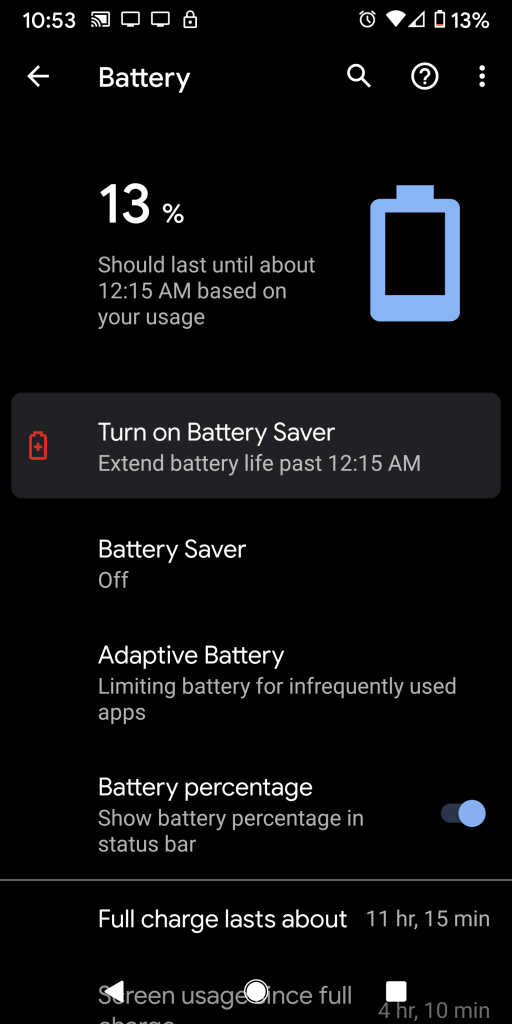
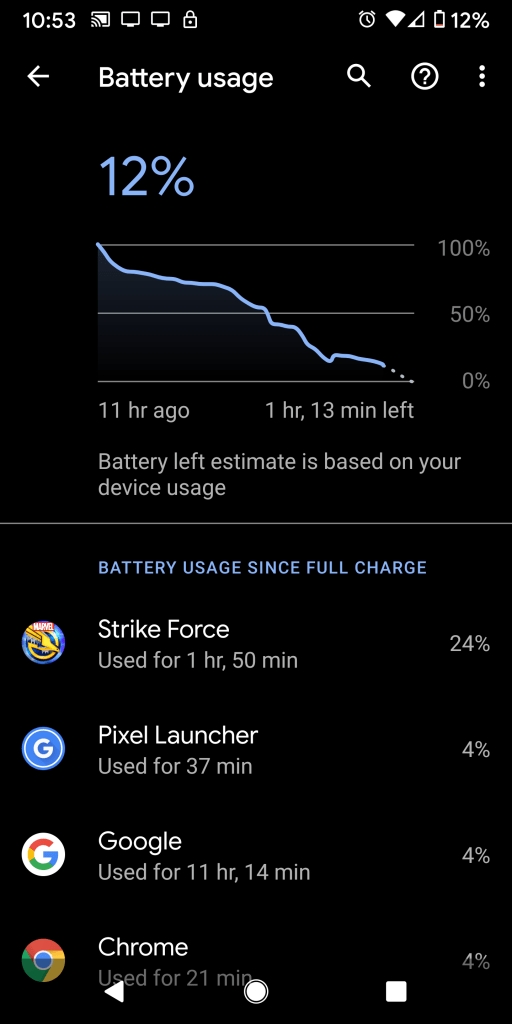
The battery settings section has evolved over time and includes many details regarding its operation as well as what specifically caused the drain. On Pixel for example, by clicking the 3 dots menu button in the top-right of the Battery Settings screen, you can see which apps have caused what percentage of drain(see below). Furthermore, with an additional tap of the respective app’s icon on this screen, you can see the app’s foreground and background battery consumption.
What do I do with the culprits?
Well, sometimes you just have to face the facts. If you’ve been gaming or watching a series on Netflix for a few hours while waiting on your layover, expect your device to drain quickly. Games and streaming apps will sometimes be the main contributors to the drain of your battery. This is because the games can utilize heavy graphics/processing and streaming apps use data… and both use that nice screen of yours. Heavy processing, data and screen use tend to drain the battery the most.
If you find an app that you don’t regularly use however, it may be time to take some action. If it’s an old game that you no longer play for example, you may have not known that it could still run other processes in the background…like generating all of those notifications and ads that you hate. You may want to uninstall apps on this list that you don’t use.
Need to squeeze out a few more precious moments?
Low Power Mode –
Most new phones include a mode that attempts to reduce the use of the battery while maintaining a high level of functionality. On Pixel devices for example it’s called Battery Saver. On iPhones, Low Power Mode.
Some models also include the option to activate the mode directly from the notification panel. Here it’ll usually look like a battery icon and may have a description to indicate its purpose. Activating this mode can come in handy any time you’re running low and don’t anticipate getting a charge in the near future. You may also find that your device will activate this on its own by default when you get low.
Brightness Settings –
Reducing your brightness as low as you can tolerate can save you a good bit of battery life, especially if you plan to have your screen on for an extended period of time. One can adjust this setting in the notification shade or display settings. Voice commands via your assistant like “Screen Brightness 50%” may also work.
Airplane Mode –
The radios in your device require power to function. Disabling them one at a time like turning off Bluetooth, Wi-Fi or GPS will help reserve the power normally used by them. Of course you can do this all at once by turning on Airplane Mode. This can normally be found in the notification/command section of your device symbolized by an airplane icon or within settings. A simple voice command from your respective voice assistant service after the prompt like, “Turn on Airplane Mode”, may work as well.
Portable Power Banks –
The rise in popularity of portable power banks have brought new form factors, features, lower cost and convenient sizes. If always ensuring you’re charged and ready is important to you then it may be worth your while to buy one that fits in your pocket or bag to restore the precious glow of your phone.
Beware of the Power Down –
If you don’t plan on using your phone for a significant amount of time before charging, not much beats a full power down. However, if you still plan on checking your phone every 5 minutes then this may actually not be the best recommendation. This is because your device goes through a lot when it boots to get your device ready for use, some of which may include a nice bright splash screen. This can actually cause more strain on your battery than leaving it on using the other tips when done repeatedly.
These are just a few causes and solutions for your battery drain. Have you found any surprising causes for your battery to drain? What tips do you have to stay charged and efficient? Comment below!
Did your lights just flicker? Is a big storm in the forecast? Quick, grab the candles and a radio! Wait…you don’t have any of those? Well, in addition to the recommendations from your local authorities, these are tips I personally use to help get me through a power outage and they might just help you as well!
Charge Other Devices
Most newer phones with USB-C and/or Reverse Wireless Charging features actually allow you to share your power with a second device that may have not been as prepared :-l .
Use a standard USB-C cable to plug both ends into compatible phones and use the options that appear in notifications to select how you’d like the devices to behave. In some cases, the charging of the lesser charged phone may be the default action.
Some devices come with the ability to charge another device wirelessly just by touching the two devices together. This is referred to as reverse wireless charging. Although not as widely available as the former cable-driven method at the moment, it can be a quick way to share some juice when a cable is not nearby. To do this, only the device providing the power needs the capability…the other simply needs to be Qi wireless charging capable, which most phones are nowadays. Just place the providing phone face down and the receiving phone face up on top of the other device the same as you would on any charging pad and get your “Thank You” ready. Note, some models may require activation of the reverse wireless charging feature before the contact. On Samsung devices for example, a quick tap of the Wireless Powershare icon in the notification shade will get you started. See your devices support resources for more information.
Portable Power Banks
Not only are these devices life-savers while traveling, they can be super clutch during a power outage. Varying in form and functionality, they provide power on the go…or on the stay when the power is out. A quick search at your favorite storefront should provide plenty of options ranging from models that can charge your phone, laptop or even jumpstart your car! Just make sure it’s compatible with your device’s charging port and provides the amount of juice you’ll need. Generally, a power pack with at least 5000mAh should be good for 1 full charge of most smartphones.
Radio and News Apps
It’s always good to be informed. Some local news sources have their own applications that will provide vital information for your area during an emergency. Same goes for radio. You can download apps like iHeartRadio to listen to local stations and to stay in the know when the TV is taking an involuntary nap.
Power Save Mode
Most new phones include a mode that attempts to reduce the use of the battery while maintaining a high level of functionality. On Pixel devices for example it’s called Battery Saver. On iPhones, Low Power Mode.
Some models also include the option to activate the mode directly from the notification panel. Here it’ll usually look like a battery icon and may have a description to indicate its purpose. Activating this mode can come in handy not just for power outages, but any time you’re running low and don’t anticipate getting a charge in the near future.
Video Downloads
If you have time to prepare for what may be a significant span of time without data or your TV, consider downloading your family’s favorite shows and videos ahead of time so you can still watch them. It should be noted that watching a video on your phone is one of the most battery hungry activities you can do but if you choose to do so, eliminating the need to use data simultaneously would help preserve your precious battery life. While prepping your downloads pre-storm, you may want to safely charge your device to avoid further drain.
Tapping the download arrow next to seasons or individual episodes will accomplish this within the Netflix app for example. Many streaming services now support this functionality including some of your favorite music apps.
You can also enable “Smart Downloads” from your Netflix settings under the “Downloads” section to allow Netflix to predict and automatically download your shows in the background.
Flashlight
Don’t forget your phone, and even some smart watches, have a built-in flashlight! Usually found in the notification shade as a flashlight icon, this mode uses the same LED light that illuminates your photos and videos to provide a significant source of light. Activating this mode on your smartwatch turns the watch’s face white and brightness up. You can also try the voice command “Turn on flashlight” to get the job done on many devices.
Mobile Hotspot
When the Wi-Fi goes out, the fun doesn’t have to stop. Most newer devices can turn themselves into a WiFi hotspot, providing internet access for one or more devices like tablets, laptops etc.. You can even supply a Smart TV with connectivity but keep in mind this can consume large amounts of data…we’re talking in the Gigabytes! To see/edit the network name and password, head to the settings for your device. See image for an example on Android devices. Check with your wireless carrier for pricing/rates and availability.
Brightness – Expecting a short lull in the power? A quick decrease in the screen brightness can add precious minutes to your battery life and when you’re in the dark, it just makes sense! One can adjust this setting in the notification shade or display settings. Voice commands like “Screen Brightness 50%” may also work.
Have Some Fun
This goes without saying but your smartphone provides access to an endless amount of games, e-books and other forms of digital entertainment. I know you always keep your cool, but just in case others around you aren’t having such a good time in the dark, lightening the mood a bit with some fun activities can help pass the time until the lights turn back on and everyone sighs with relief.
Enjoy The Break
Battery charged? Cell signal good to go? Great! Now puuuuuuuuuut the phone down and enjoy the disconnection. This tip is about NOT using your phone. Call it battery preservation.
Have a conversation with your loved ones without looking at your phone or TV every 2 seconds. I don’t know…meditate. Your phone will be there for you later. This may just be what you need to truly enjoy a rare moment of tranquility. Just and idea 😉
Do you have any smartphone tips to help you get by without power? Comment below!





 Tech Dabble